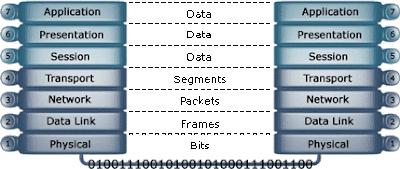
The Cisco Discovery Protocol (CDP) is a media- and network protocol independent layer 2 protocol that is used to discover information about neighboring network devices. Because CDP operates at the Data Link layer, it doesn't need a network layer protocol, such as IP or IPX, to transfer information. CDP devices send out periodic advertisements to the MAC multicast address 0100.0ccc.cccc, every 60 seconds by default. The holdtime is 180 seconds by default, when exceeded without receiving advertisements the CDP entry is removed from the CDP table.
CDP runs on all Cisco equipment including routers, switches, bridges and access servers. It gathers information about neighboring devices such as the type of device, software version, and network layer addresses, if configured. This information is stored in a table in the device's RAM.
CDP is enabled by default, use the following command in global configuration mode to disable CDP for the entire router:
Router(config)# no cdp run
To see if CDP is enabled for the router, and display the current CDP timers, use the following command:
Router> show cdp
To disable CDP on a particular interface, use the following command in interface configuration mode:
Router(config-if)# no cdp enable
One of the most important commands regarding CDP is the show cdp neighbors command. It displays the following information:
* type of device that is discovered
* name of the device
* number and type of the local interface (port)
* number of seconds the CDP advertisement is valid for the port
* device type
* device product number
* port ID
Router02> show cdp neighbors
Capability Codes: R - Router, T - Trans Bridge, B - Source Route Bridge S - Switch, H - Host, I - IGMP, r - Repeater
Device ID Local Intrfce Holdtme Capability Platform Port ID
Router01 Ser 0 154 R 2500 Ser 0
When the detail option is added to the command, it will display the following additional information per discovered device:
* Network layer addresses (IP, IPX, AppleTalk, etc.)
* IOS version
Router02> show cdp neighbors detail
-------------------------
Device ID: Router01
Entry address(es):
IP address: 192.168.22.5
Platform: cisco 2500, Capabilities: Router
Interface: Serial0, Port ID (outgoing port): Serial0
Holdtime : 126 sec
Version :
Cisco Internetwork Operating System Software
IOS (tm) 2500 Software (C2500-D-L), Version 12.0(9), RELEASE SOFTWARE (fc1)
Copyright (c) 1986-2000 by cisco Systems, Inc.
Compiled Mon 20-Oct-2003 07:29 by jhiemstra
Besides using the built-in IOS commands to display the information gathered by CDP, CDP can also be used in combination with SNMP and a Network Management Station to gather and store information.
The following commands are most probably not part of the CCNA exam(s) but are included for completeness.
Router> show cdp entry [* | ID]
Displays all entries or a specific entry of the CDP table. The show cdp entry * results in the same output as the show cdp neighbors detail command. Specify the Device ID to display a specific entry. Mind that the Device ID is case sensitive.
The show cdp interface command displays the interfaces for which CDP is enabled including the encapsulation type and CDP timers.
The following command displays the CDP counters regarding CDP packets sent and received as well as error statistics:
Router02> show cdp traffic
CDP counters :
Packets output: 48, Input: 36
Hdr syntax: 0, Chksum error: 0, Encaps failed: 6
No memory: 0, Invalid packet: 0, Fragmented: 0
The default update timer of 60 seconds can be changed using the cdp timer command in global configuration mode. For example, the following commands will configure the router to send CDP advertisements every 90 seconds:
Router(config)# cdp timer 90
The default holdtime of 180 seconds can be changed using the cdp holdtime command in global configuration mode:
Router(config)# cdp holdtime 270
To disable CDP globally on a Catalyst 1900 switch (not relevant for CCNA), use the following command:
Console> (enable) set cdp disable
Alternatively, CDP can be disabled on a particular interface. In the following example CDP is disabled for the port 12 on a module 1:
Console> (enable) set cdp disable 1/12
Thursday, March 11, 2010
Cisco Discovery Protocol (CDP)
IP Access Lists
ACCESS LISTS
Access lists allow Cisco routers to function as a packet filter and are supported for several protocols. The most common of these protocols are listed in the following table:
Protocol Range
IP standard 1 to 99 (and 1300 to 1999 in IOS 12.0 and higher)
IP Extended 100-199 (and 2000 to 2699 in IOS 12.0 and higher)
Ethernet type code 200-299
DecNet 300-399
XNS 400-499
Extended XNS 500-599
AppleTalk 600-699
Ethernet address 700-799
IPX Standard 800-899
IPX Extended 900-999
IPX SAP 1000-1099
Access lists are lists of rules that either permit or deny certain inbound or outbound traffic from and to particular hosts or networks. The access list and its rules are applied to one or more interfaces on the router. When the router routes traffic through these interfaces, the rules in the list are processed sequential, looking for a matching rule permitting the traffic to pass. When there is not a matching rule permitting the traffic to pass, it is denied by default because of the implicit deny any at the end of each rule. For example, if you deny telnet traffic to host 172.16.22.139 using the rule: access-list 110 deny TCP any host 172.16.22.139 eq TELNET and this would be the only rule in the access list, you would effectively deny all IP traffic from entering or leaving the router's interface.
The implicit deny all, for many, is a confusing part of access lists and often forgotten in practice while in fact it is very logical. If you want to protect a network using a packet filter, you would typically start out with denying all traffic, and from there permit certain hosts or networks to communicate certain traffic.
In addition to protecting private networks from external intruders, access lists are also commonly used to manage network traffic. For example, if you do not want certain protocols or services available in particular subnets you can block only those ports but permit all other traffic. This is also used as an effective way to prevent traffic such as ICMP messages and routing updates from traveling over certain links.
Standard IP Access Lists
Standard IP access lists are used to permit/deny traffic from or to one or more IP addresses.
Use the global exec access-list command to create access lists:
router(config)#access-list number deny|permit source|any [log]
Use the Interface config mode access-group command to bind the access list to an interface: router(config-if)#ip access-group number in|out
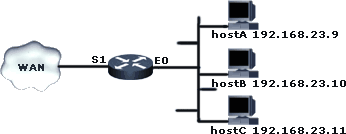
For example, to deny hostC from sending traffic to the WAN in the network depicted in the diagram below, use the following commands.
router(config)#access-list 10 deny 192.168.23.11 router(config)#access-list 10 permit any router(config)#interface ethernet 0 router(config-if)#ip access-group 10 in
When traffic is send to the router’s Ethernet interface the rules in access list 10 are processed, if the traffic is send by hostC the router drops the packets and stops processing the rules. The rule access-list 10 permit any is included because of the implicit deny. There must be at least one ‘permit’ rule otherwise the protocol is completely disabled for the interface as soon as you bind it.
Wildcard Masks/Inverse Masks
Instead of specifying a single IP address, you can also permit or deny networks/subnets entirely or partly by using wildcard masks, also known as inverse masks. To understand this concept, it helps a lot if you have some basic understanding of subnetting.
The first example is simple: if you want to deny access to all hosts in the network 172.16.23.0 with subnet mask 255.255.255.0 you would use 172.168.23.0 0.0.0.255 as the source in the access-list command. When the router checks if the addressing information of an incoming packet matches the denied address specified in the access list, it only cares about the part of the address where the corresponding bits in the inverse mask are 0. The part of the address where the corresponding bits in the inverse mask are set to 1 can be anything (in this example 0 to 255).
In other situations, where you want to specify a range of addresses that does not have the boundary between 0s and 1s exactly between octets, you might need to convert it all to binary to determine the inverse mask. For example, you want to specify the network 172.18.16.0 with the subnet mask 255.255.240.0. When you convert this mask to binary it shows that in this subnet mask the first 20 bits are set to 1 (11111111.11111111.11110000.00000000), so the inverse mask would have the first 20 bits set to 00000000.00000000.00001111.11111111 which is 0.0.15.255 in decimal notation. This would specify the address range 172.18.16.0 to 172.18.31.255.
If you want the source or destination to be any host from any network you could use the address 0.0.0.0 with the inverse mask 255.255.255.255, but to save you from pressing so much keys you can use the keyword any instead.
In Extended Access lists the keyword host can be used to replace the 0.0.0.0 inverse mask. Instead of specifying a single address with 192.168.23.11 0.0.0.0 you can use host 192.168.23.11.
Extended IP Access Lists
Extended IP access lists offer more granular control compared to standard lists that only allow you to deny or permit traffic from a certain source. Extended access lists allow you to control TCP/IP traffic based on the Transport protocol being used (TCP or UDP) and the service or application (e.g. SMTP, Telnet) from source addresses AND destination addresses.
Use the global exec access-list command to create the access lists. This command supports numerous arguments, most of them are beyond the scope of the CCNA exam. At the bottom of this TechNote are links to documents at Cisco.com explaining the complete syntax. Nevertheless, here is the most important part:
router(config)#access-list number deny|permit protocol source|any destination|any
When TCP or UDP is used as the protocol argument two other important arguments are operator port. The port argument can be a TCP or UDP port number or name (e.g. 21 or FTP, 23 or TELNET, 123 or NTP), the operator is usually eq which means equal, other options include lt (less than) and gt (greater than).
Use the Interface config mode access-group command to apply the access list to an interface: router(config-if)#ip access-group number in|out
Take a look at the diagram below for example:
You can prevent SMTP traffic originating from the WANs from traveling over link A to an SMTP server wuth destination 192.168.115.20 by putting an outbound extended IP access list on the Serial 0 interface of RouterX and using the following commands on RouterX (or RouterY):
router(config)#access-list 105 deny TCP any host 192.168.115.20 eq SMTP
router(config)#access-list 105 permit IP any any
router(config)#interface serial 0
router(config-if)#ip access-group 105 out
Following is another example using the same diagram above. It shows how you can use extended access lists to control ICMP traffic (used for utilities such as ping and trace). For example, to deny the hosts in the Ethernet network attached to RouterY to use ICMP to communicate with hosts on the other side of the router, use the following commands on RouterY:
router(config)#access-list 102 deny icmp 192.168.115.0 0.0.0.255 any
router(config)#access-list 102 permit IP any any
router(config)#interface serial 1
router(config-if)#ip access-group 102 out
The following command allows you to remove an access list from interface:
router(config-if)#no ip access-group number|name in|out
For example: router(config-if)#no ip access-group 102 out
The following commands allows you to completely delete an access list from the configuration:
router(config)#no access-list number|name
For example: router(config)#no access-list 102
Named Access Lists
If your router is running IOS 11.2 or higher, you can create named access lists. Instead of choosing a number between 1-99 for standard IP access lists, you can use a custom name allowing for more lists and more convenient management. The commands to create a named access list are different for standard and extended access lists.
To create a named access list, use the following command in global configuration mode:
router(config)#ip access-list {standard | extended} name
This command will take you into access-list configuration mode where you can define the deny and permit rules. For example to create a named access list with the name wwwfilter and permit only access from the networks 192.168.132.0, 172.17.0.0 and 10.0.0.0 use the following commands:
router(config)#ip access-list standard wwwfilter
router(config-std-nacl)#permit 192.168.132.0 0.0.0.255
router(config-std-nacl)#permit 172.17.0.0 0.0.255.255
router(config-std-nacl)#permit 10.0.0.0 0.255.255.255
Use the exit command to exit access-list configuration mode.
A named list is applied to an interface in the same way as with numbered lists:
router(config-if)#ip access-group wwwfilter out
VTY Lines
You can also use standard access lists to limit access to VTY lines. For example:
router(config)#access-list 5 permit 192.168.23.8
router(config)#line vty 0 4
router(config)#access-class 5 in
Monitoring and Verifying
The following commands are useful for monitoring and verifying the operation of access lists.
The show ip interface command displays which access lists are applied to the specified interface, for example:
router(config)#show ip interface serial 1
The following command displays the contents of an access list, and if applied to an interface, the number of matches per permit/deny rule:
router(config)#show access-lists number|name
If you do not specify an access-list number or name, all the current access lists will be displayed. You can also use the show ip access-lists command to display one or all of the current IP access lists.
Wednesday, March 10, 2010
Integrated Services Digital Network (ISDN)
ISDN
Integrated Services Digital Network, a circuit-switching network used for voice, data and video transfer over existing copper telephone lines. ISDN is a bit similar to the normal telephone system but it is faster and needs less time to setup a call. ISDN runs on the bottom three layers of the OSI reference model.
There are several types of ISDN channels, the two main being the 64 Kilobits per second B-channel for data, and the D-channel for control information. Two B-channels + one D-channel make up ISDN BRI (Basic-Rate Interface), some Remote Access servers support a feature called multilink allowing both B-channels to be combined in a single virtual link of 128 Kbps. In SOHO networks often 1 B-channel is used for data (an internet connection for example) and 1 B-channel is used for voice (connected to a digital telephone for example). The US and Japanese version of ISDN PRI (Primary-Rate Interface) is made up of 23 B-channels (total rate of 1.472 Mbps) and 1 D-channel. The European and Australian version supports 30 B-channels (total rate of 1.984 Mbps) and 1 D-channel.
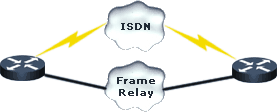
A common implementation of these two types of ISDN is a remote access solution with ISDN PRI at the corporate network supporting 23 dial-in connections for employees with ISDN BRI at home. Also an ISDN BRI connection is often implemented as a backup line between routers in WANs such as in a Frame Relay network as shown in the following image:
Besides this dial-up ISDN configuration for backup and other Dial on Demand Routing (DDR) configurations another service offered are ISDN BRI leased-line connections, the difference is they always use both data channels for the connection to the ISDN service provider and ISDN BRI leased-lines are always active.
ISDN Function groups
The ISDN function groups represent the devices in an ISDN environment such as terminals, terminal adapters, network-termination devices and line-termination equipment. The following table lists these devices:
TE1 (Terminal Equipment 1) Specialized ISDN terminals that understand the ISDN standards, for example an ISDN telephone.
TE2 (Terminal Equipment 2) Non-ISDN Terminals that need a Terminal Adapter (TA) to connect to an ISDN network, for example a regular telephone.
TA (Terminal Adapter) Converts some other form of signaling to ISDN to allow non-ISDN devices (TE2) to work the 2-wire ISDN network.
NT1 (Network Termination 1) Connects TE1 or TA devices to the ISDN network. In the US, the NT1 is located at the customer's premises and owned by the customer. In other parts of the world the NT1 is usually provided by the carrier (typically a telephone company).
NT2 (Network Termination 2) The NT2 is a physical device that interfaces the NT1 to different types of devices (TE1 or TA). In most cases it is a PBX at the customer's premises.
Take for example an apartment building or campus, if have a demand for ISDN lines from your renters (customers) you can order an ISDN PRI and connect it to your local PBX. You can then extend the ISDN service to any place in the building(s).
The following image shows the various function groups and reference points.
The following image illustrate some real-life situations. As you can see the NT2 is left out, most NT1 adapters today have a U interface on one side and an s/t on the other so you simply plug your TE1 or TA into the NT1 and you're good to go.
The following image shows two type of routers, the upper is usually used in North America where the demarcation point between the customer premises and the carrier's network is the U reference point, this router is actually a TE1 with a built-in NT1 and is also known as a 'U router'. The other router is used in most other parts of the world where the NT1 is provided by the telco, this router is actually a TE2 with a built-in TA and is also known as a 'S/T router'.
ISDN Reference points
ISDN specifies four reference points that define the logical interfaces/connections between function groups (also represented in the mage below):
R defines the reference point between non-ISDN equipment (TE2) and a TA.
S defines the reference point between and an NT2.
T defines the reference point between NT1 and NT2 devices.
U defines the reference point between NT1 devices and line-termination equipment in a carrier network. Relevant in North America where the NT1 function isn’t provided by the carrier network.
ISDN protocols
ISDN protocols are defined in ITU protocols that operates on the Physical, Data Link and Network layer of the OSI model. There are several series of protocols dealing with different issues:
E series defines the use of ISDN on the existing telephone network.
I series deals with concepts, aspects, and services.
Q series covers switching and signaling. The LAPD protocol is formally specified in ITU-T Q.920 and ITU-T Q.921. LAPD is the signaling protocol used on the D-channel in ISDN BRI and PRI.
Configure ISDN BRI and Legacy DDR
Configuring ISDN may seem to be complex but is rather simple in basic situations. The diagram below shows a typical setup connecting two remote offices using an ISDN dial-up configuration.
First the ISDN switch type must be configured and should match the carrier's equipment. You can use the isdn switch-type command in both global config mode (required) and interface configuration mode (optional if different per interface). For example:
Router(config)#isdn switch-type basic-dms100
The correct switch type should be supplied by the carrier. Click here for a table at Cisco.com listing the ISDN BRI service provider switch types. If you change the switch-type, you must reload the router for the new switch type to take effect.
Although ISDN supports several upper-layer protocols such as IP, IPX and Appletalk, typically IP is used and this is also the one relevant to the CCNA exam. Configuring an IP address on an ISDN BRI interface is done in the same way as configuring an IP address for any other interface such as Ethernet or Serial:
Router(config)#interface bri 0 (to enter interface config mode)
Router(config-if)#ip address 172.16.22.115 255.255.255.0
Some service providers require the use of SPIDs for your ISDN device to be able to place or receive calls. A SPID is usually the telephone number of the channel with some optional numbers which can be used to identity the service(s) the customer is subscribed to. The SPID numbering scheme depends on the service provider and the switch-type. For example, the DMS-100 switch type requires a SPID for each B channel.
Router(config-if)#isdn spid1 5055551234 0111 (B1 channel)
Router(config-if)#isdn spid2 5055551235 0111 (B2 channel)
The default encapsulation type for each B-channel is HDLC, however PPP encapsulation is recommended over HDLC in order to allow the use of CHAP authentication. The encapsulation type can be configured using the following command in interface configuration mode:
Router(config-if)#encapsulation ppp
Now to configure the actual part that maps the link to the network layer using the dialer map command, it defines the remote host where the calls are going, specifies whether broadcast messages will be sent and the dialing string to use to set up the call. Here's the syntax of the command:
Router(config-if)#dialer map protocol next-hop-address name remote-name speed 56|64 dial-string
We'll break down the command using example options:
Router(config-if)#dialer map ip 172.16.22.114 name RouterB speed 64 broadcast 55588613213
- The IP address of the remote router's BRI interface used in this command is the next hop. In the global configuration you will have to define a static route to the remote network pointing to the next hop address used in the dialer map command. The use of static routes is very important, since you don't want to use dynamic routing protocols for this type of connection because the routing updates will keep the link up.
- The remote name in name remote-name is the hostname of the other router.
- speed defaults to 64 (in kilobits) but you may need to set it to 56 in some situations.
- The broadcast option specifies whether broadcast packets such as routing updates are sent.
- The dial-string is the telephone number that should be dialed when making an outgoing connection. You can leave out this number to configure the interface to only accept incoming connections.
The following commands will define "interesting" traffic that will cause the router to place a call make the connection. For example if you want the router to dial-in for all IP traffic you need to configure a dialer-list and bind it to the BRI interface:
Router(config)#dialer-list 1 protocol ip permit
Router(config)#int bri0
Router(config-if)#dialer-group 1
You can also use regular or extended access lists to permit all traffic except HTTP/HTTPs for example. Instead of using the options in the dialer-list command above you would specify the access list:
Router(config)#dialer-list 1 protocol ip list 101
The following command makes the router disconnect calls that haven't had any interesting traffic for the configured time:
Router(config-if)#dialer idle-timeout seconds
To add some level of security and to identify the router when it dials out, you should use the Challenge Handshake Authentication Protocol (CHAP). The hostname of the router is used to identify the router to another router when sending messages.
Router(config-if)#ppp authentication chap
The global configuration username command is required when CHAP is used to specify the CHAP secret message to use when challenged by another router. Important to know is that the two routers that need to talk must share the same password.
Router(config)#username routerB password password
PPP Multilink
Multilink is a feature that enables the use of both B-channels combined for one call. To turn on multilink use the following command:
Router(config-if)#ppp multilink
Use the following command to specify when the second B-channel should kick-in (bandwidth on demand). When the total load for this connection reaches this threshold, it brings up the other B channel. This value represents a utilization percentage; it is a number between 1 and 255, where 255 is 100 percent.
Router(config-if)#dialer load-threshold 60
TROUBLESHOOTING AND MONITORING ISDN
Here are some commonly used show commands used to monitor and troubleshoot ISDN:
Router(config)#show interfaces bri number
Displays information about the physical attributes of the ISDN BRI B and D channels.
Router(config)#show controllers bri number
Displays protocol information about the ISDN B and D channels. Checks Layer 1 (physical layer) of the BRI.
Router(config)#show isdn {active | history | memory | status | timers}
Displays information about calls, history, memory, status, and Layer 2 and Layer 3 timers.
Router(config)#show dialer interface bri number
Obtains general diagnostic information about the specified interface. Checks Layer 3 (network layer).
Router(config)#show isdn status
Use to verify that ISDN BRI Layer 1 is ACTIVE, LAYER 2 State is MULTIPLE_FRAME_ESTABLISHED, and the service profile identifiers (SPIDs) are valid.
Router(config)#debug q921
Checks Layer 2 (data link layer).
The following three commands offer more advanced methods to check Layer 3 (network layer) operation:
Router(config)#debug isdn events
Router(config)#debug q931
Router(config)#debug dialer